Getting started with the Balluff Update Platform (BUP)
Welcome to the Balluff Update Platform (BUP) documentation. Here you’ll find an overview of BUP, its features, and step-by-step instructions for getting started and managing updates efficiently.
This getting started guide will help you to find and download artifacts that are associated with your Balluff product, such as firmware updates or configuration files.
Prerequisites
Please ensure you have the following information before proceeding:
The 7 digit order code or the type code of your Balluff product.
This information is printed on the device or can be seen on various interfaces like Balluff Engineering Tool or BNI/Network Block Module.The hardware version of your product, if applicable.
This information can usually be found on the device label or in the product documentation.
Find and download product artifacts
To find and download product artifacts, follow these steps.
Access the Balluff Update Platform. To do so, open your web browser and navigate to https://software.balluff.com. You will be redirected to the Products menu.
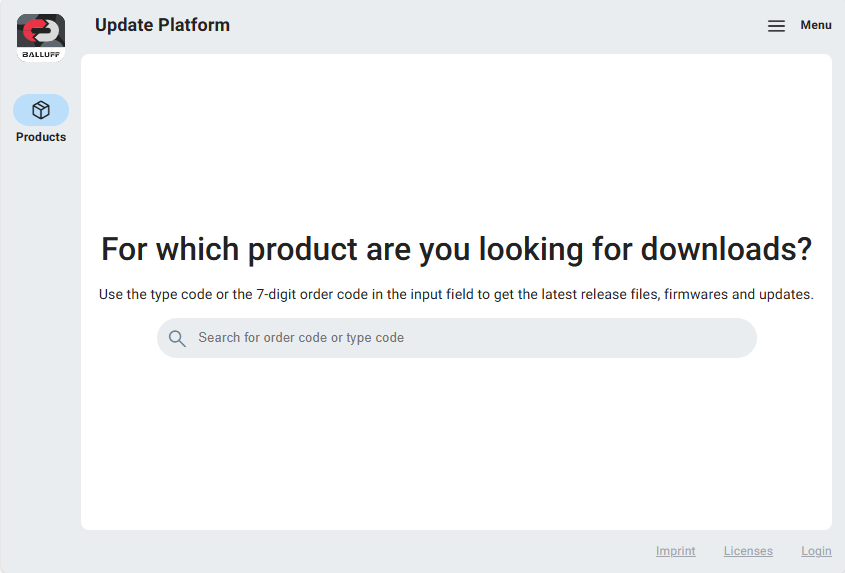
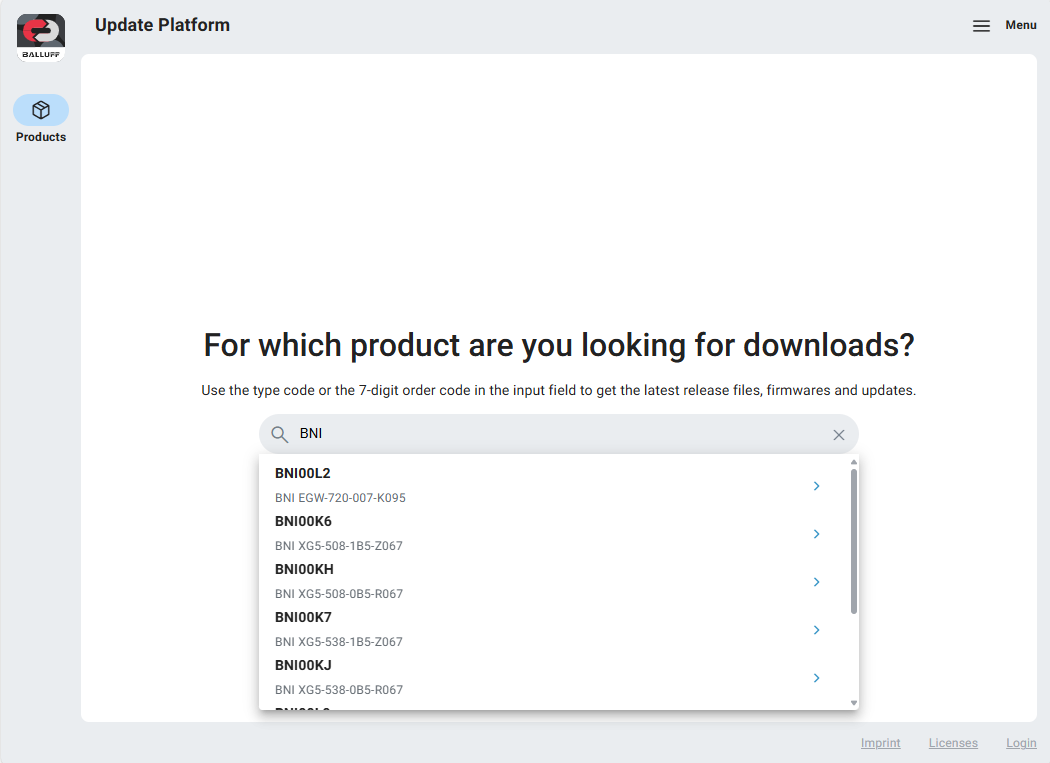
To find entries for your product, enter the seven digit order code or the type code in the search field. From the previewed results, click on your product to open its dedicated product page.
The product page opens and shows information about the latest available release.
New artifacts in this release are marked next to the artifact version.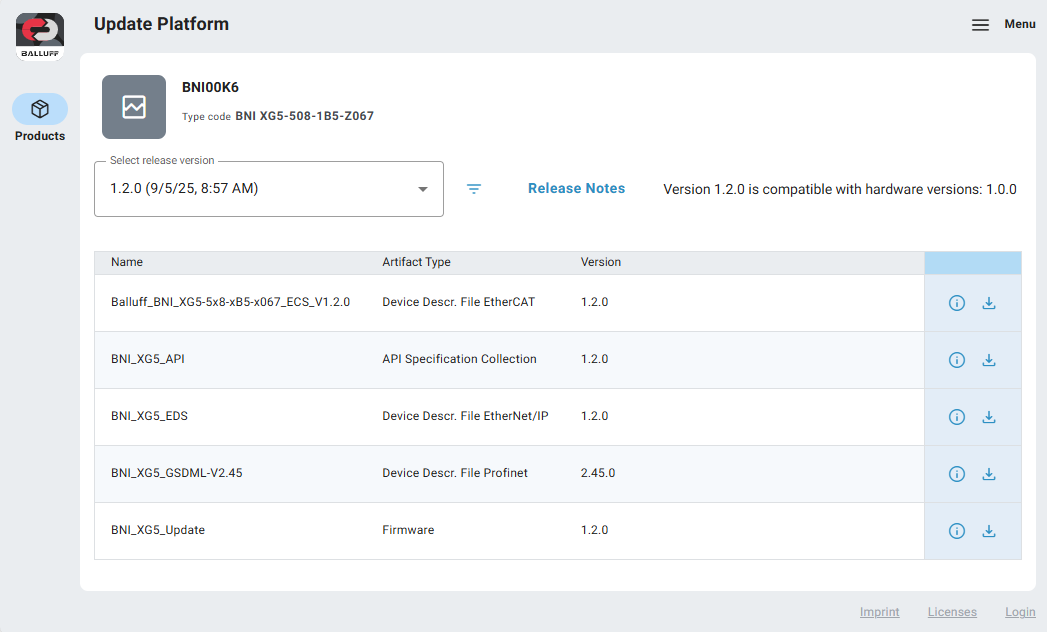
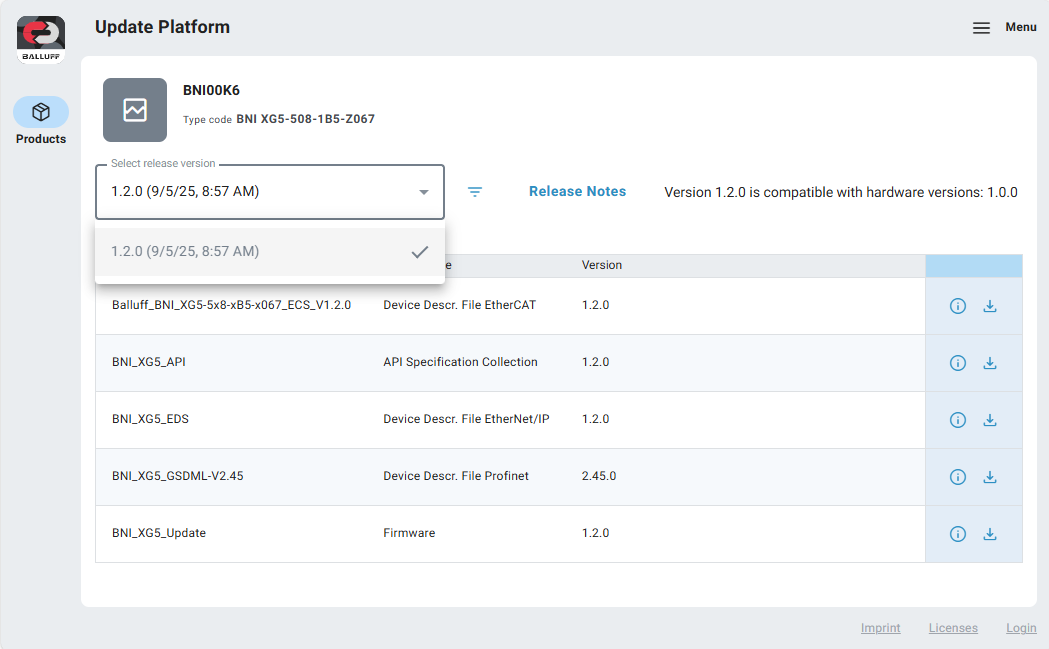
To navigate to the desired release, open the dropdown box showing the currently selected release and select the needed version. The downloadable files are presented in the table below.
Hint
Releases can have following states:
Recommended Actively maintained, fully supported, safest option
Maintained Supported with essential fixes, but not the newest
Deprecated Unsupported, no fixes - do not use this
Check if the listed files match your products hardware version. The information is displayed below the release selection.
Releases without text are compatible with all hardware versions of this product.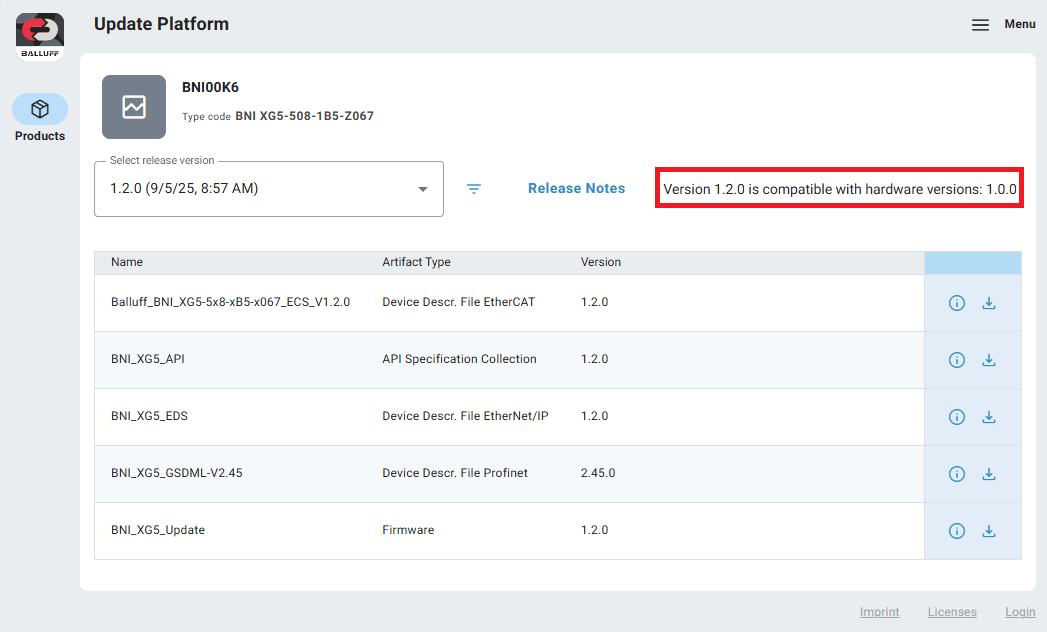
Note
When compatible hardware includes versions like
1.*.*then the release is compatible to all versions beginning with major version 1.1.1.*then the release is compatible to all versions beginning with major and minor version 1.1.
When there is no compatible text, the release is valid for all devices containing this order code.
(Optional) Type in your hardware version in the filter field.
When the current release does not match it will be changed automatically.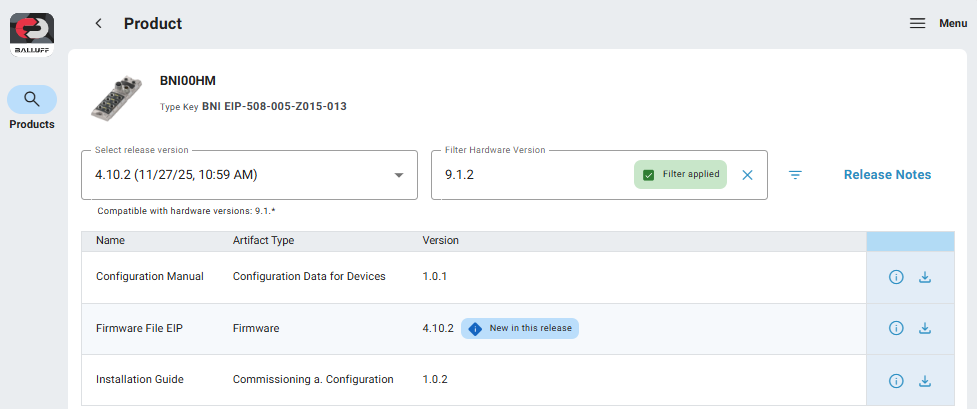
The relese selection disables incompatible versions.
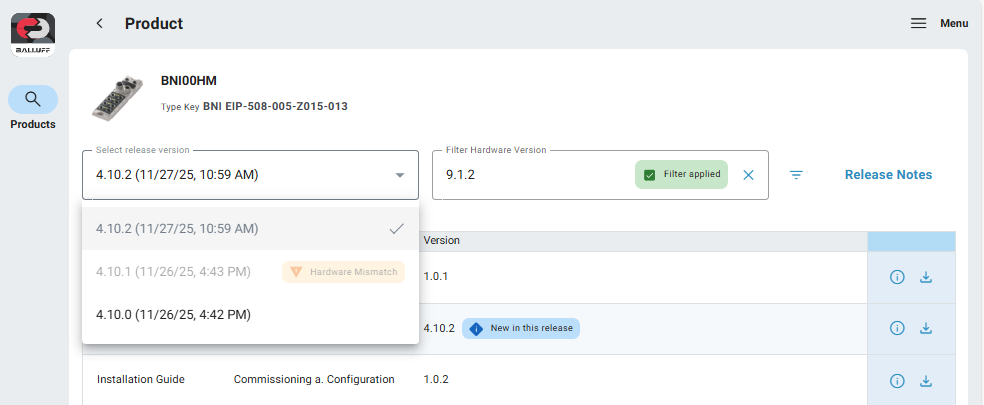
(Optional) To get a bookmark of the newest release you need to save the URL without the filter after the order code.
(Optional) You may want to verify artifact file information before download, see Information of release files
To download a file, click on the download icon on the right side of the respective file row.
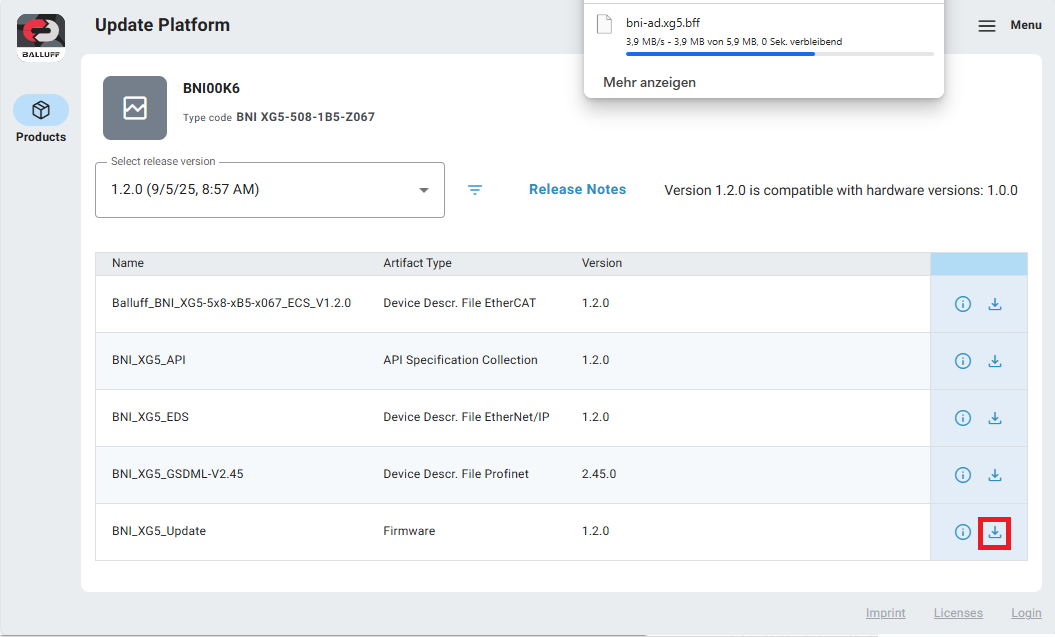
Warning
Do only install firmware on compatible hardware versions.
(Optional) You can download all public files of the selected release.
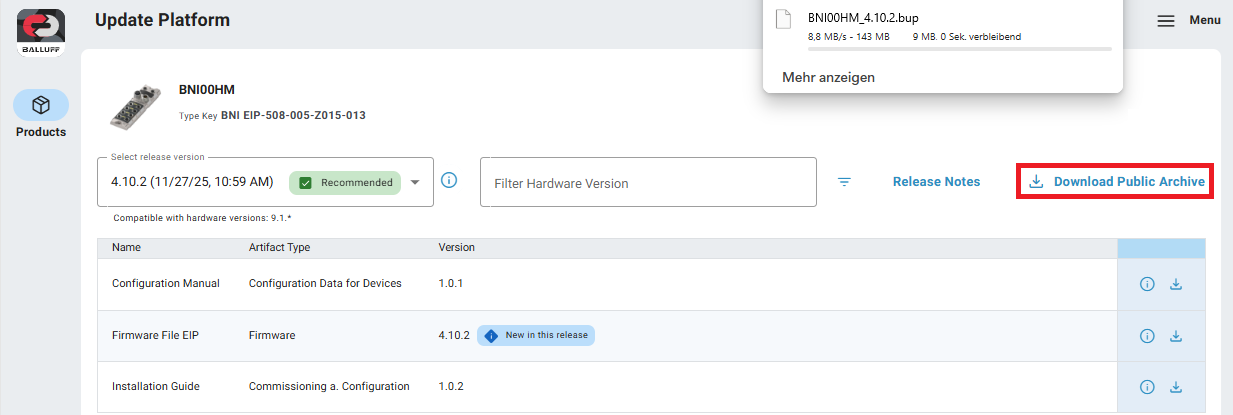
Download either a normal .zip archive or a .bup archive. The .bup archive is normally zipped under the hood, but follows a certain structure to be interoperable with other Balluff Tools like the Balluff Engineering Tool (BET) to update devices not connected to the internet.
Warning
Do only install firmware on compatible hardware versions.
Email notifications
Subscribe to email notifications to follow releases and security advisories for selected Balluff products. You do not need a BUP account or password. Your email address must be verified before you can manage your subscription. Notifications inform you about updates; they do not download or install software on your devices.
Subscribe and verify your email
Open https://software.balluff.com and select Notify Me in the navigation.
Enter your email address, complete the I’m not a robot check, and select Subscribe.
The Confirm your email page confirms that a verification email has been requested. Open that email and follow its verification link within 48 hours.
After verification, open your notification settings and add the products you want to follow, as described below.
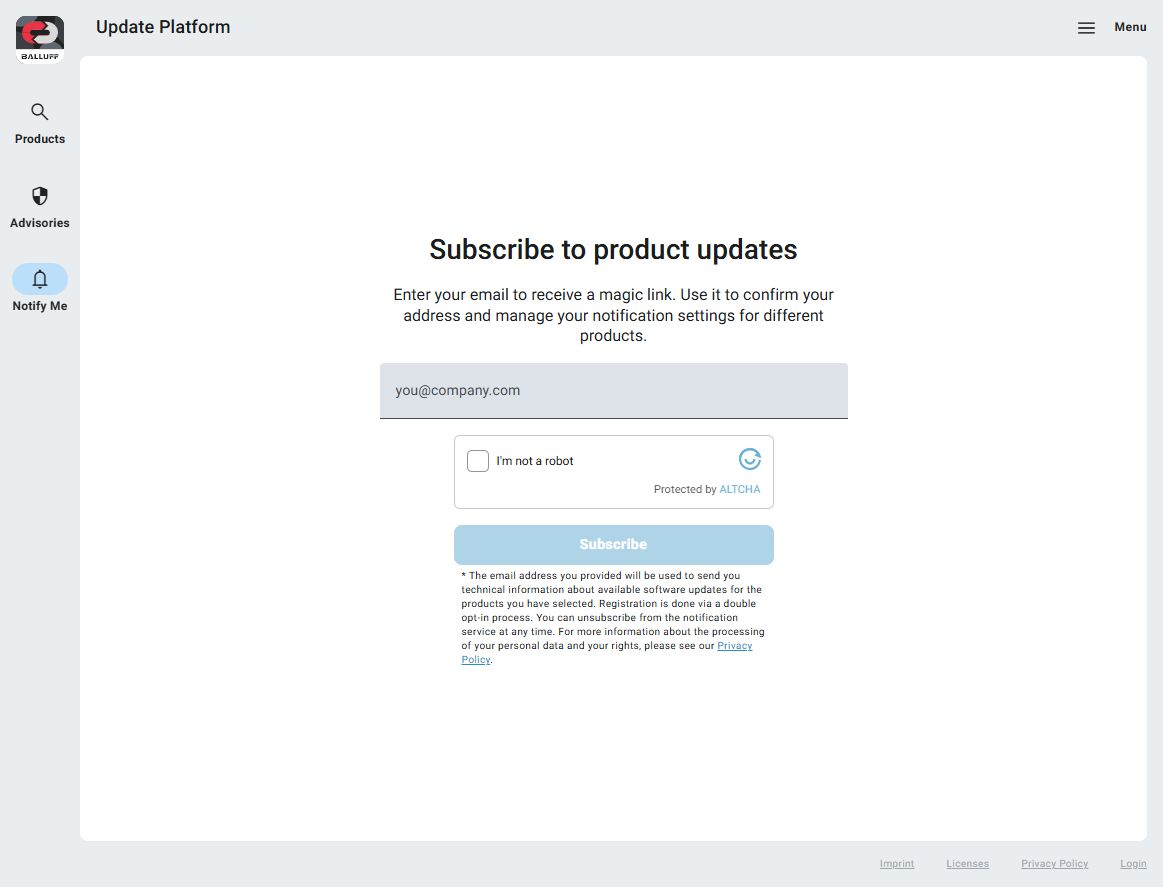
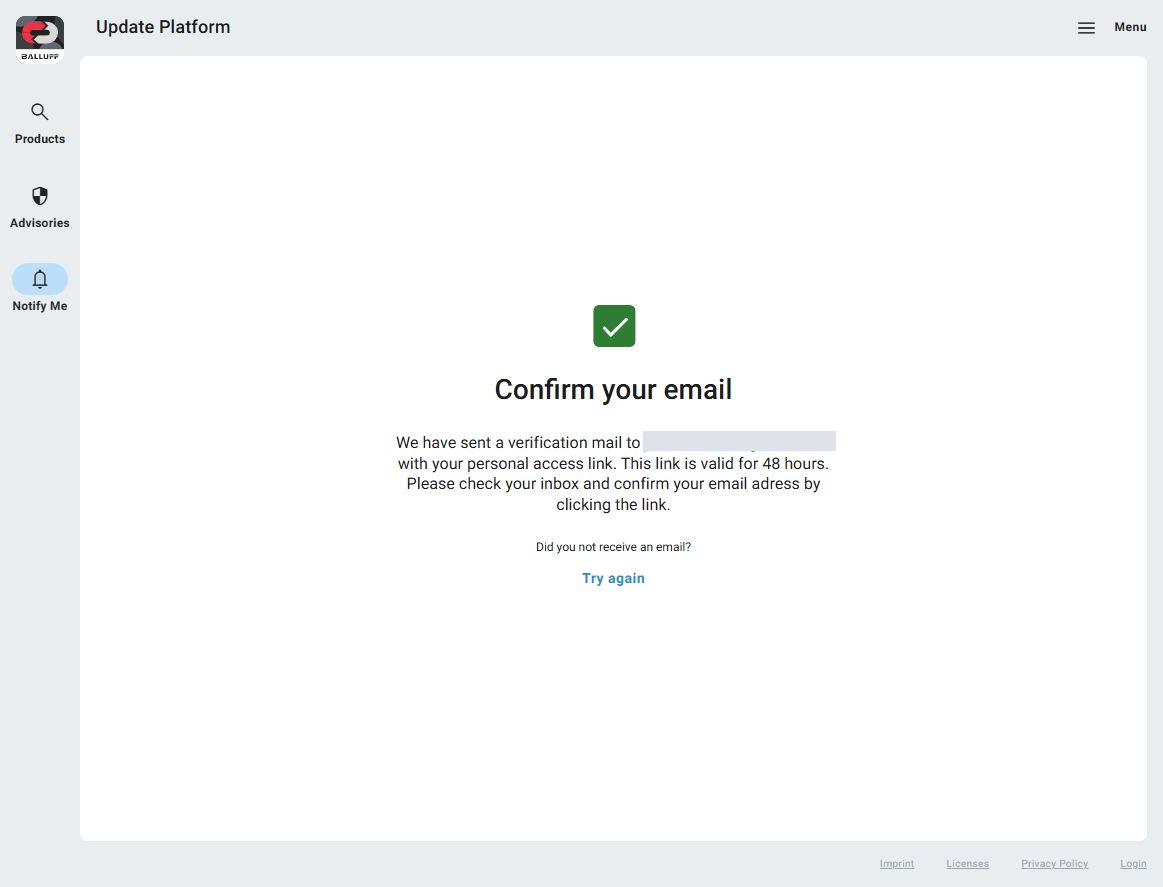
Check your inbox and follow the verification link within 48 hours.
If your address is already verified, submitting it again requests a management email instead of a new verification. In that email, select Manage subscriptions to open your settings. A management email does not by itself change your selected products or preferences.
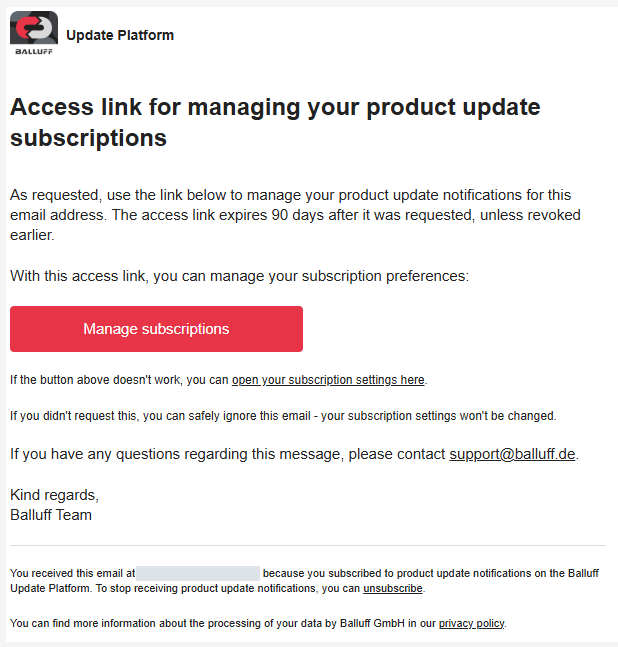
Management email for an already verified address, not the initial verification email.
Warning
Your personal email links grant access to your notification settings. Keep them private and do not forward them or share screenshots containing their URLs.
Choose your products
The Product update subscriptions page lists the products you follow.
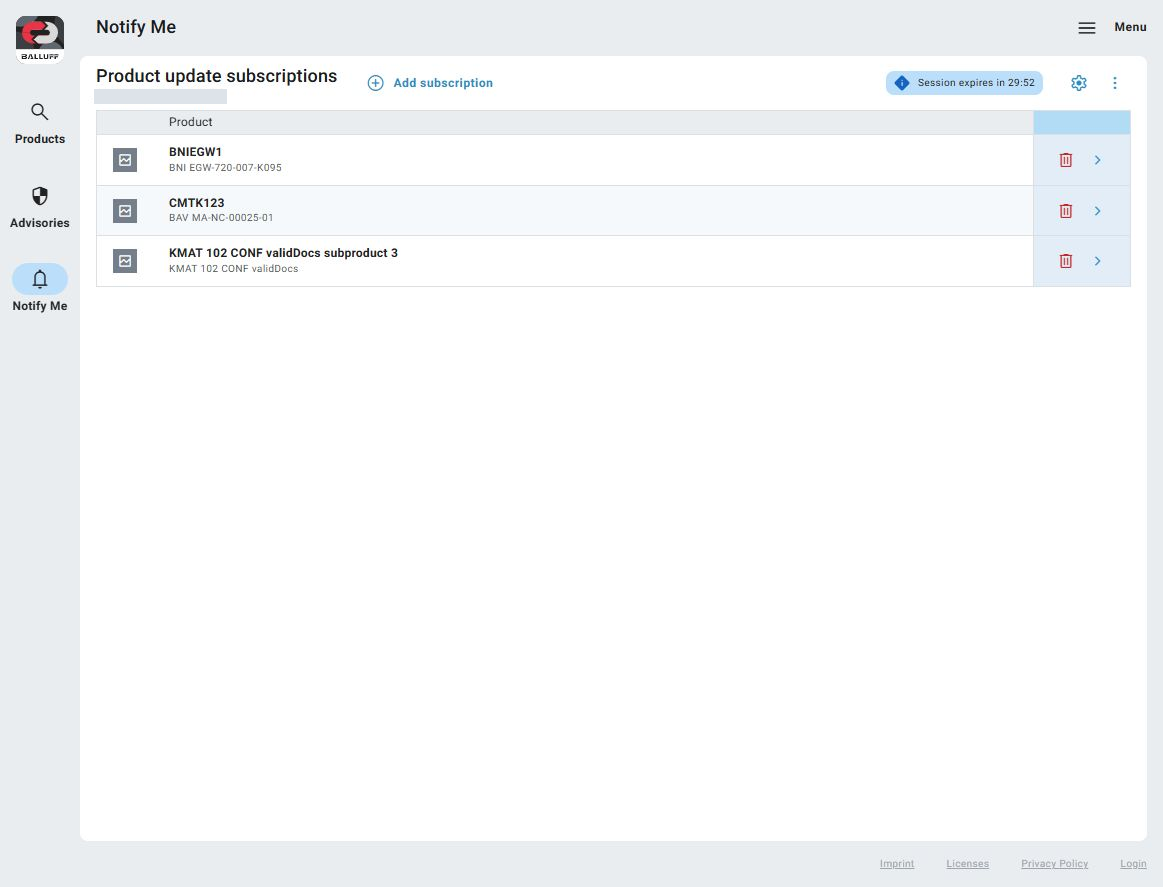
Manage the products you follow from Product update subscriptions.
Select Add subscription.
Search using the product’s seven-character order code or product type code.
Select a result to add it to the list in the dialog. Repeat the search to select more products if needed. Use the trash icon to remove an unwanted selection before subscribing.
Select Subscribe to save the selected products. Closing the dialog without subscribing does not save them.
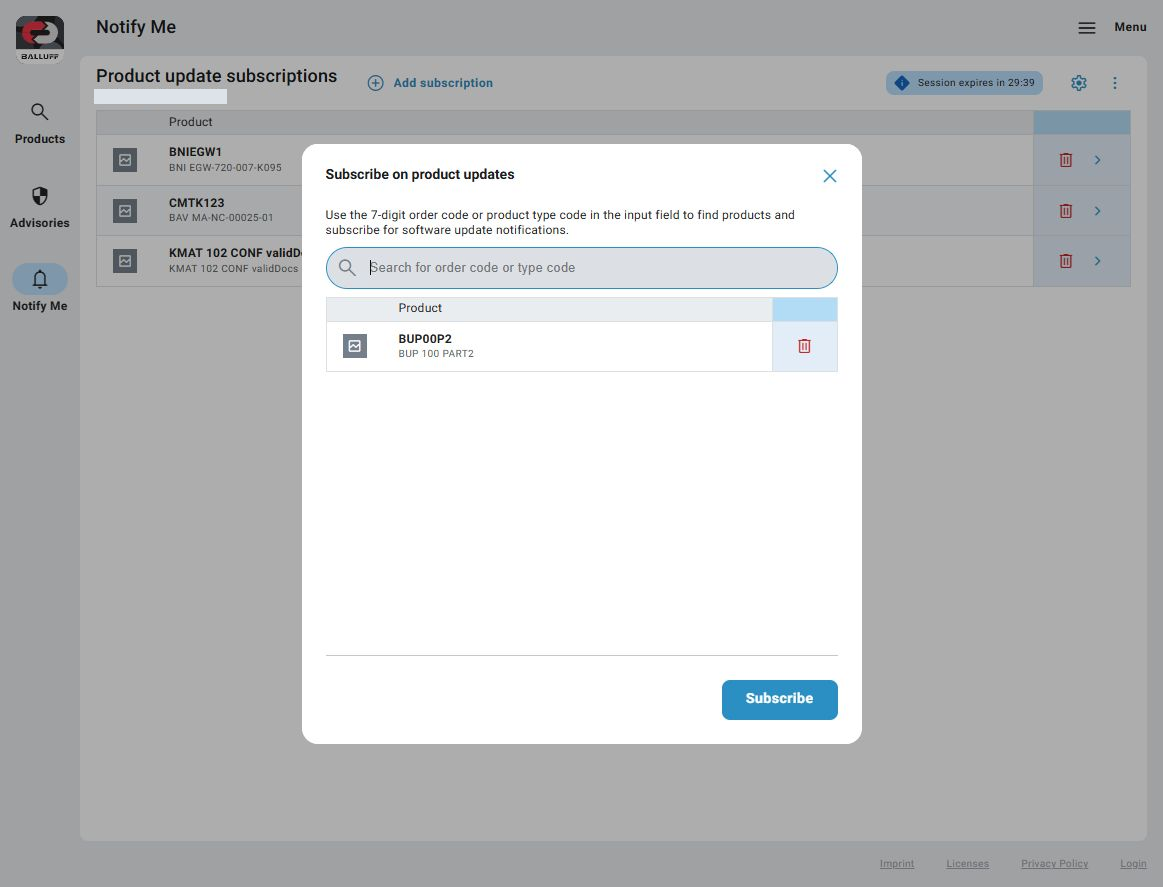
Search for products and confirm your selection with Subscribe.
Use the arrow at the right of a subscribed product to open its product page. You can follow multiple products with the same email address.
Set your notification preferences
Select the gear icon on the Product update subscriptions page.
In Notification preferences, choose a Notification Schedule:
Schedule
Digest timing
Daily Digest
Daily.
Weekly Digest (Recommended)
Sundays. This is the default.
Monthly Digest
The first day of the month.
Choose whether to enable Notify me immediately about security updates. This option is enabled by default. When enabled, relevant new or updated security advisories are sent separately from the release digest, without waiting for the weekly or monthly schedule. When disabled, security advisories are included in the selected digest schedule instead.
Select Save preferences to apply your changes. Cancel closes the panel without saving changes.
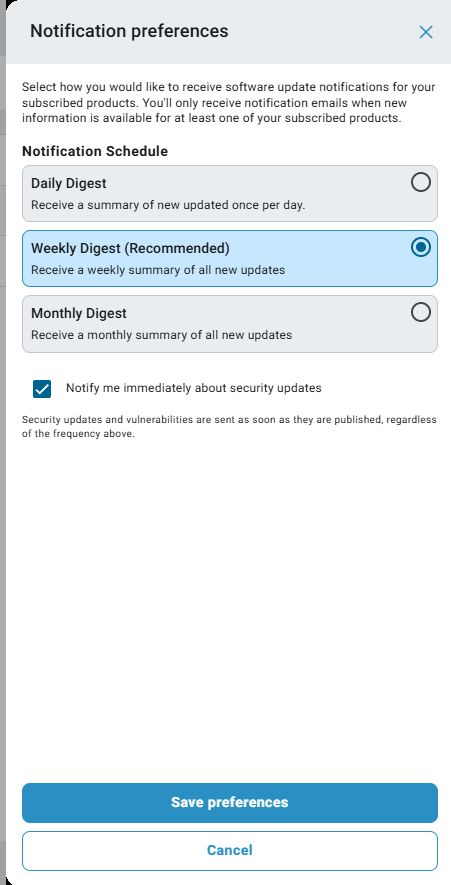
Choose your digest schedule and whether to receive security notifications separately.
Note
Notification processing currently runs daily at 02:00 UTC. The security option labelled “immediately” means that security advisories do not wait for your weekly or monthly digest; it does not mean real-time delivery on publication. Email delivery can occur later than the processing time.
You receive a digest only when relevant new releases or new or updated security advisories are available for at least one subscribed product. No email is sent for an empty digest. Subscribing is not a request for a full history of previous releases or advisories; use the product pages and Advisories to review existing information.
Return to your settings
Open Manage subscriptions in a notification email to review your products or change preferences. Management links are valid for up to 90 days after they are requested or issued, unless revoked earlier. Use a recent email link if an older one no longer works.
For security, a settings session lasts 30 minutes. The page shows the remaining time. When the session expires, reopen a valid management link. If the link has expired or you no longer have the email, open Notify Me, submit the same email address, and complete the robot check to request a new link.
If an email does not arrive, check your spam or junk folder and verify the address you entered. On the confirmation page, Try again lets you return to the form and request another email. If your initial verification link has expired, request a new verification email and use its link.
Remove products or unsubscribe
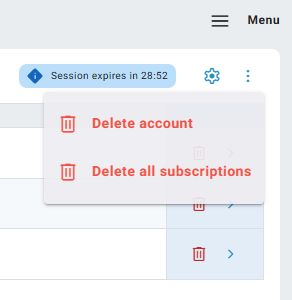
Delete all subscriptions clears your product list; Delete account cancels your registration.
Remove one product: select its trash icon and confirm the removal. Notifications for your other products remain active.
Remove all products: open the three-dot menu, select Delete all subscriptions, and confirm. This clears the product list but keeps your notification registration and preferences so you can add products later. With no subscribed products, you receive no update digests.
Unsubscribe completely: open the three-dot menu, select Delete account, and confirm. This deletes your notification registration, including its selected products and preferences. It does not delete a separate BUP login account.
You can also use the unsubscribe link in a notification email. It opens the account-deletion confirmation; opening the link alone does not unsubscribe you. To receive notifications again after deleting the notification account, subscribe and verify your email again, then select your products.
Filter for artifacts
To filter the available artifacts for specific types:
Navigate to the desired product release, see Product page.
To open the filter options for artifact types, click on the filter icon.
A new box for Artifact Types appears. To select the filter conditions, click on the checkboxes of the desired artifact types. To confirm your selection, click outside of the box.
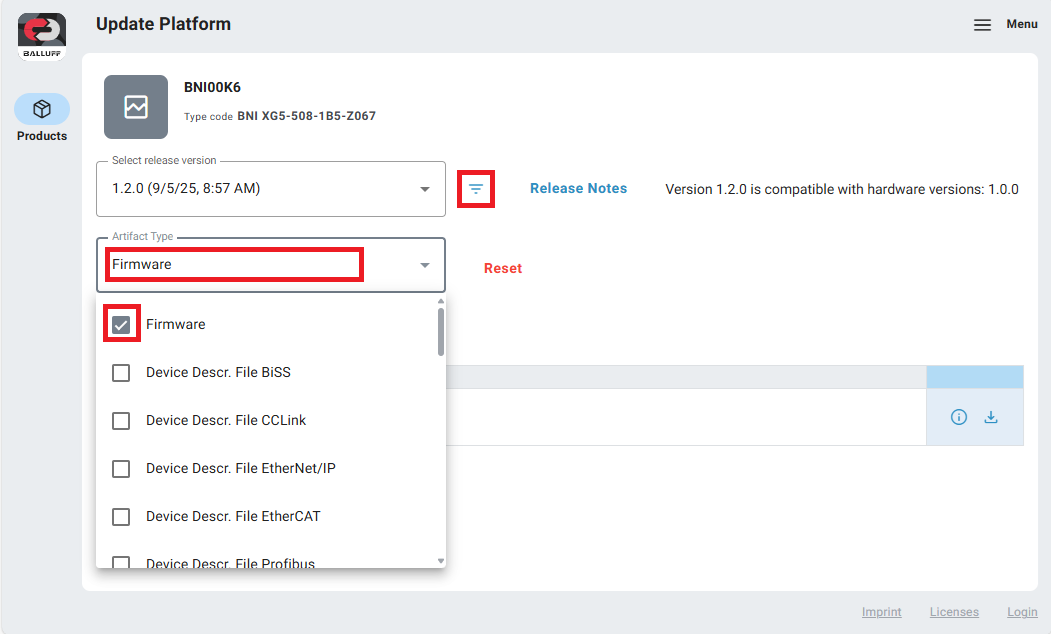
Hint
A button to reset the filter appeares when the artifact type filter is active
The filter line can be hidden again by clicking on the filter icon a second time.
To get a bookmark of always the newest release but with type filter you need to save the URL without version and releaseAt filter
Release Notes
To view the release notes of a selected release:
Navigate to the desired product release, see Product page.
Click on the Release Notes button right of the release field. The release notes will be displayed on the right side.
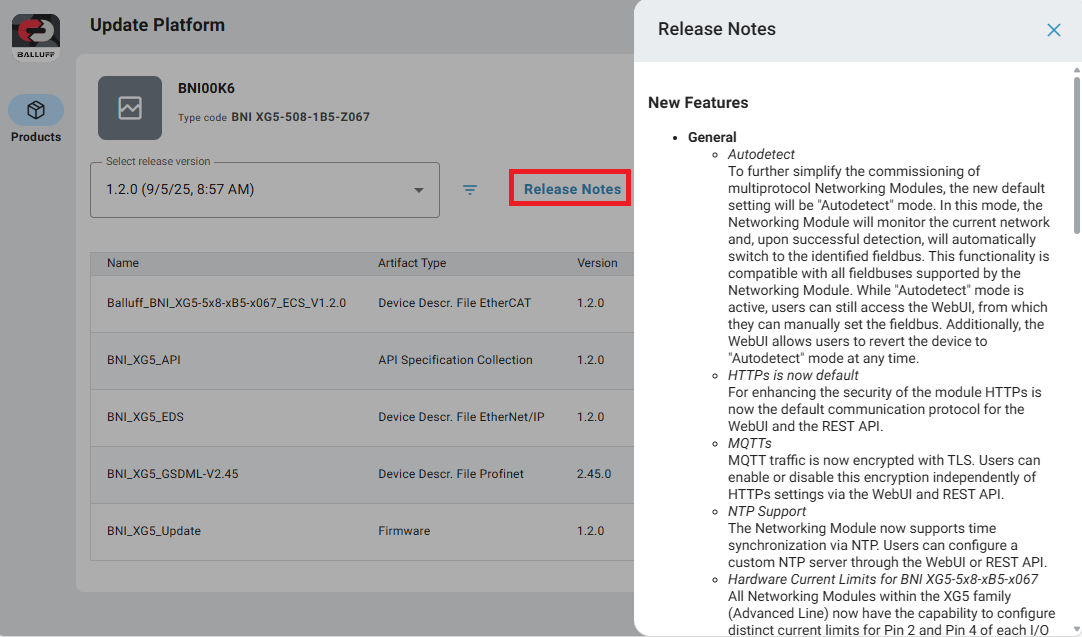
To close the release notes, click outside the release notes drawer.
Information of release files
To see additional information about a file:
Navigate to the desired product page, see Product page. A Table with available release artifacts is displayed.
Verify the artifact you want to download:
Release is the correct one matching your hardware.
Artifact Type is correct one.
Artifact Name matches your needs.
Artifact has changed since last release.
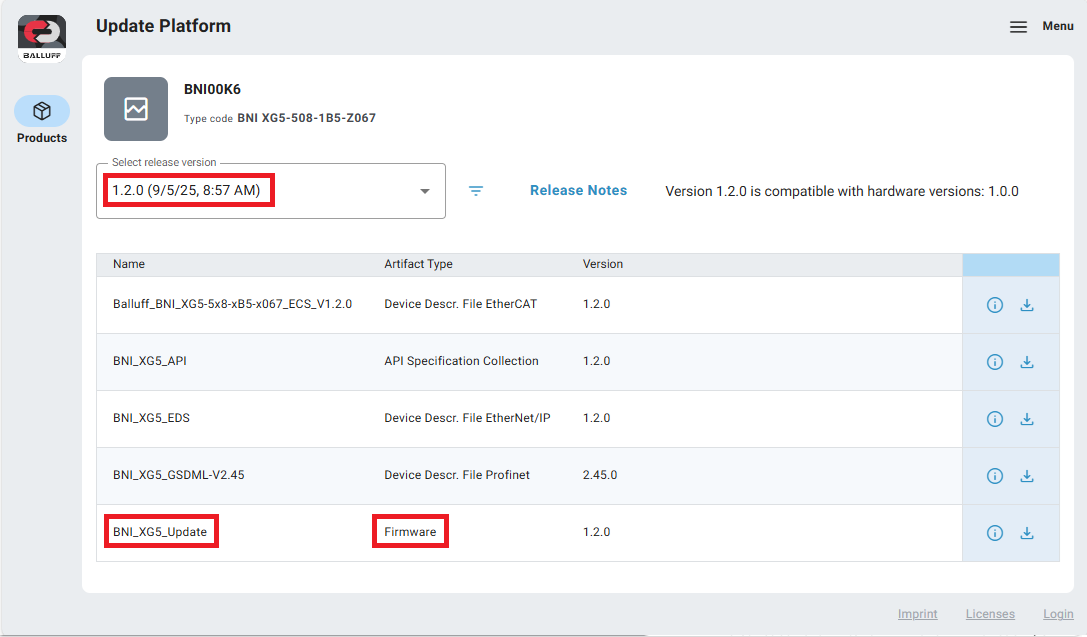
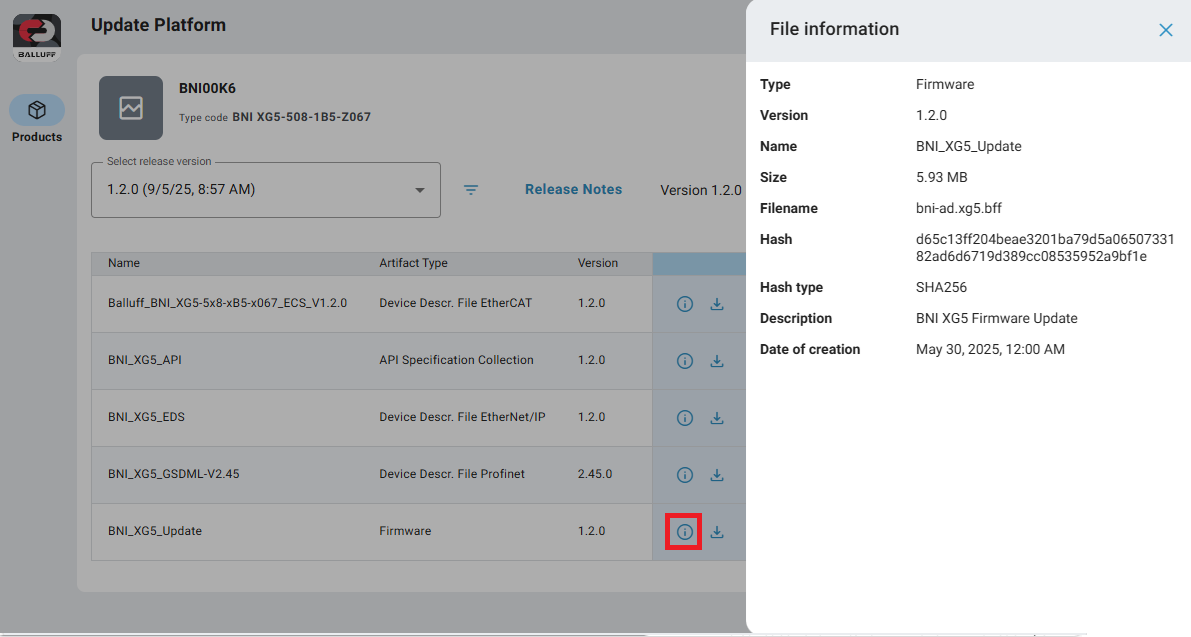
Click on Information icon in the artifact line.
Verify the file information:
Check Description if available.
Review remaining information.
Hint
The integrity of a downloaded file can be checked by comparing the SHA256 hash with the one shown in File information window. For more information go here: Check file integrity.
Click outside of the File information window to close it.
Check file integrity
Why do you want to check the integrity?
This list only shows some examples, but there are more:
Check wether the downloaded file is complete or the download got corrputed.
Check that the file that was downloaded a while ago is still the most recent one, even when the file was renamed.
Chain of trust - Make it harder for attackers to tamper any file:
We can verify that the uploaded file is the one we wanted to upload.
You can verify that the file you downloaded is the file that was uploaded by us.
How does verifying with a hash work?
A fingerprint of the file is generated and displayed in BUP.
User downloads the file.
User generates the fingerprint of the downloaded file.
User compares both fingerprints.
=> The downloaded file is the same as in the cloud.
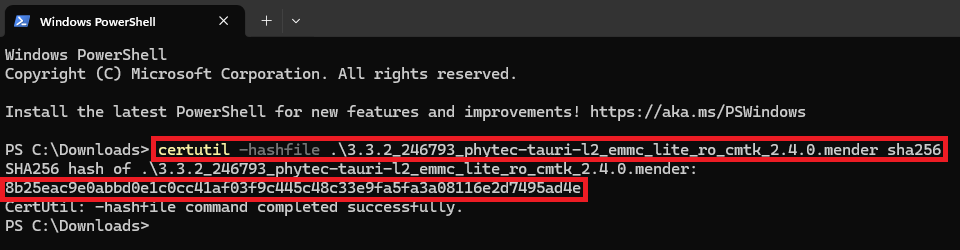
How to read the hash of a file on your PC via commandline?
Precondition:
A file is downloaded from BUP.
Steps:
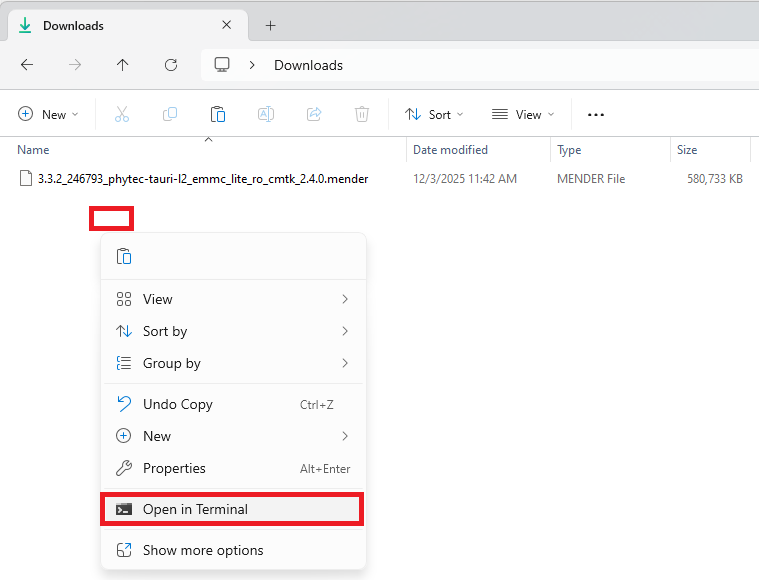
Open folder of the file.
Right click on empty space in folder.
Click “Open in Terminal”.
Write “certutil -hashfile <your-file-name> sha256”
Hint
You can just write the begin of your file and complete it by pressing tabulator key.
Press enter key.
Read the displayed hash.
How to read the hash of a file on your PC via 7-zip?
Precondition:
A file is downloaded from BUP.
The archiver program 7-zip is installed on the PC.
Steps:
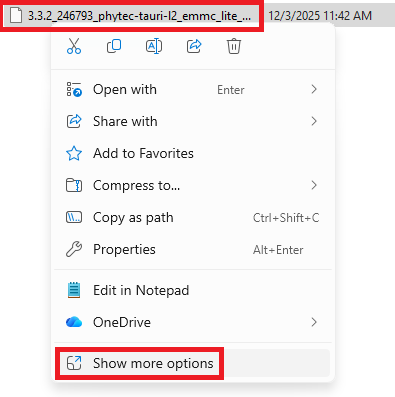
Right click on file in folder.
Click “Show more options”.
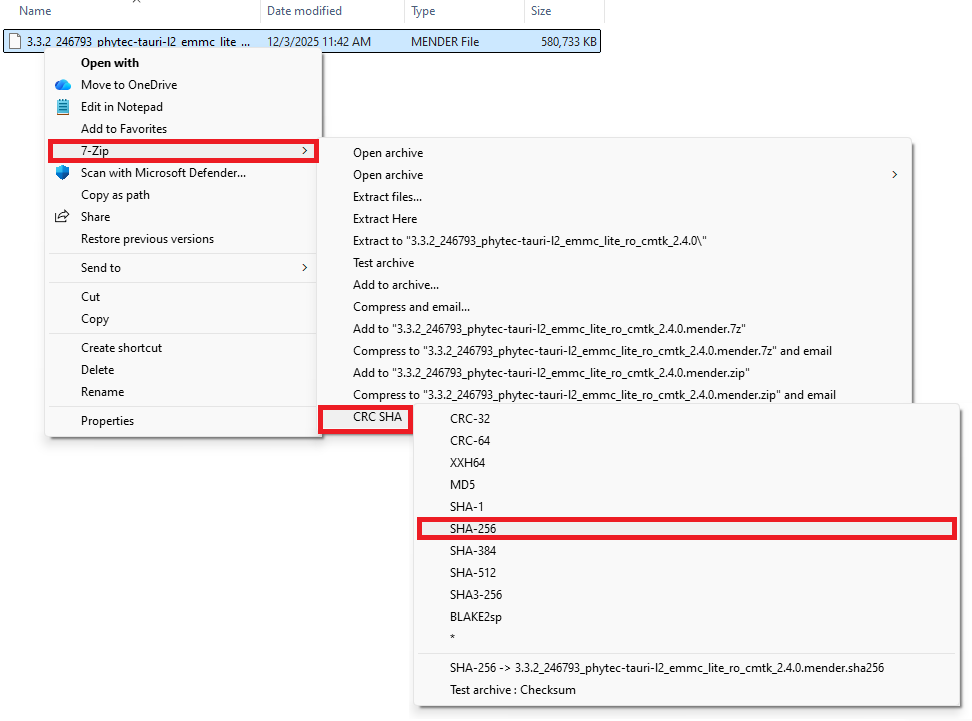
Navigate to “7-zip > CRC SHA > SHA-256”
Click on “SHA-256”
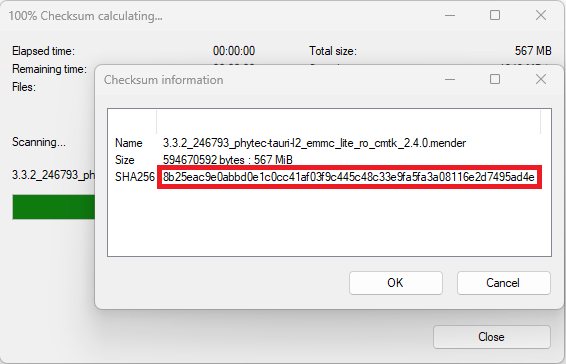
Read the displayed hash.