Configure devices
Scan devices and read parameter
To change a device’s settings, you must first read out the settings currently stored on the device.
Open your NFC Toolbox Application on your mobile device.
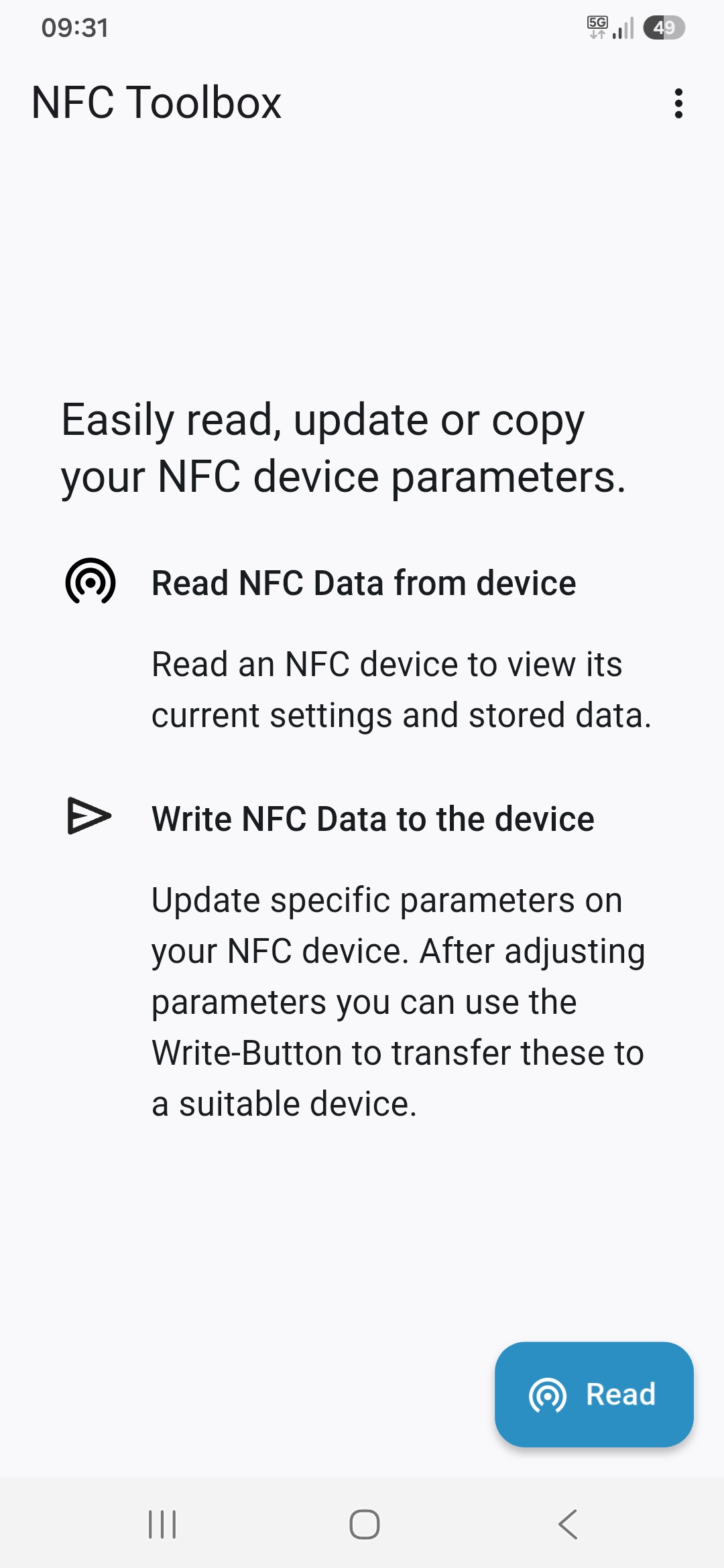
Hold your mobile device near the NFC device (e.g. BNI upper right corner) and tap ‘Read’ to connect with the hardware device.
Note
For the parameter scan to work, both the devices being scanned and the devices running the application must support NFC functions.
For further information, refer to the Installation section.
If the device has been detected and the parameters have been successfully read, the following window will appear:
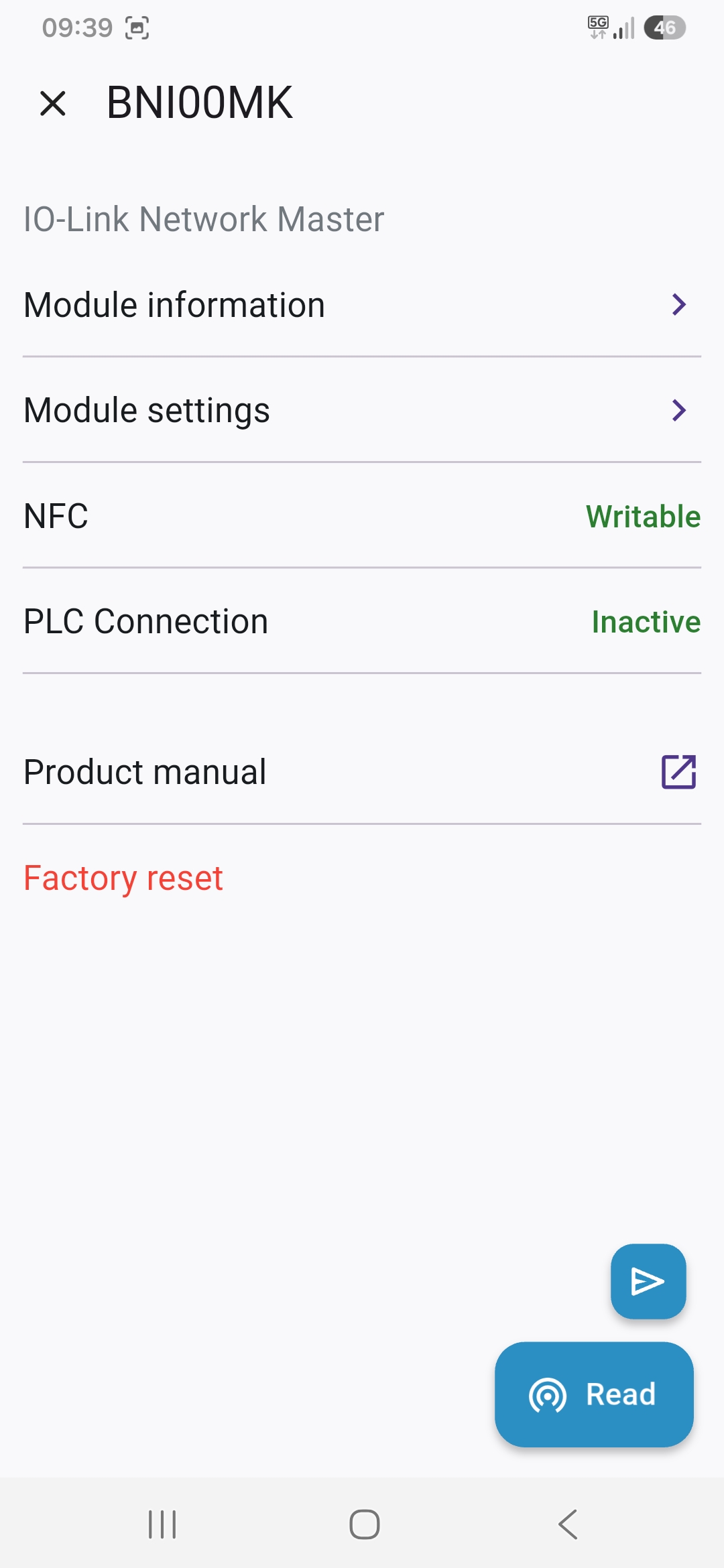
View device information
The Module information tab displays detailed information about the scanned device in read-only format. This includes product name, order code, serial number, hardware version, firmware version, and other technical details.
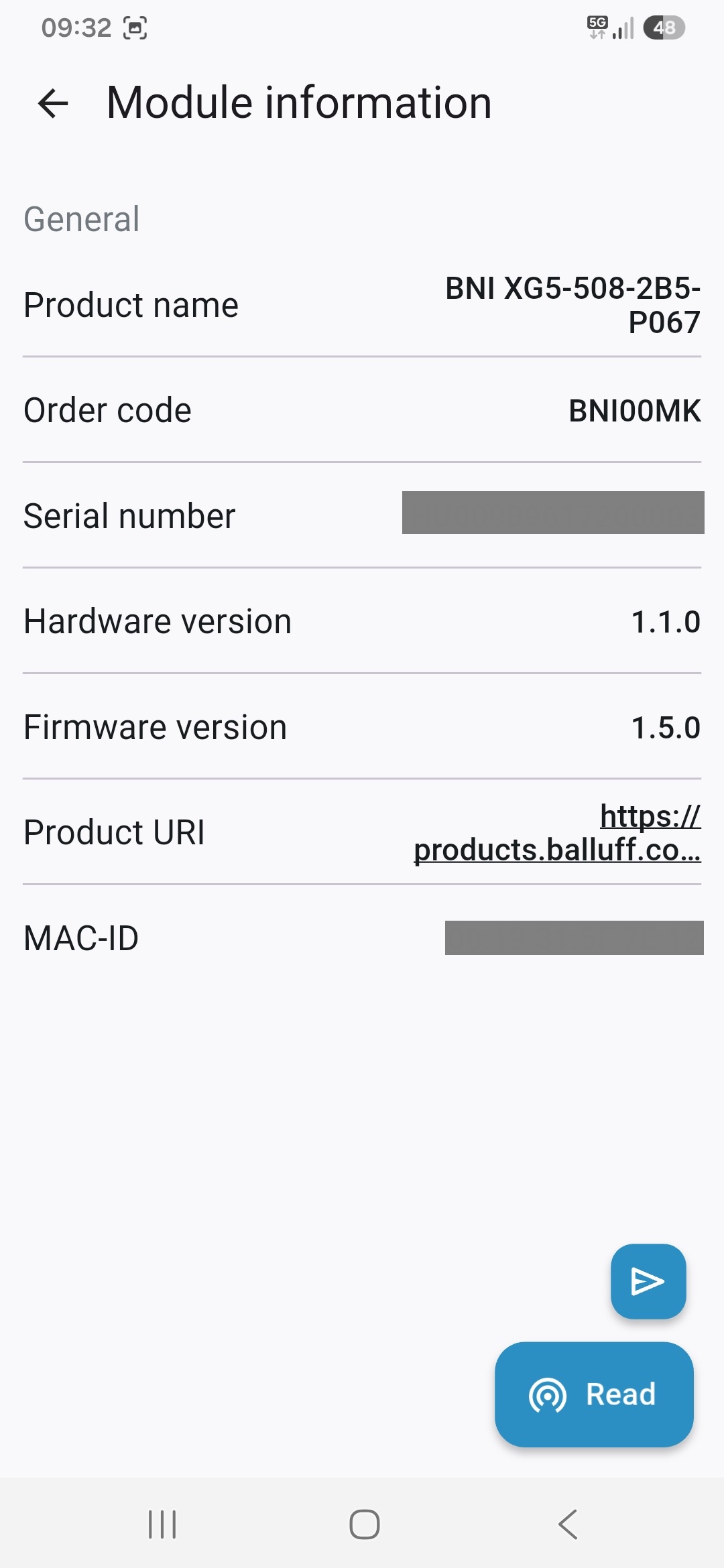
Use this information to verify that you scanned the correct device before making any changes.
View device settings
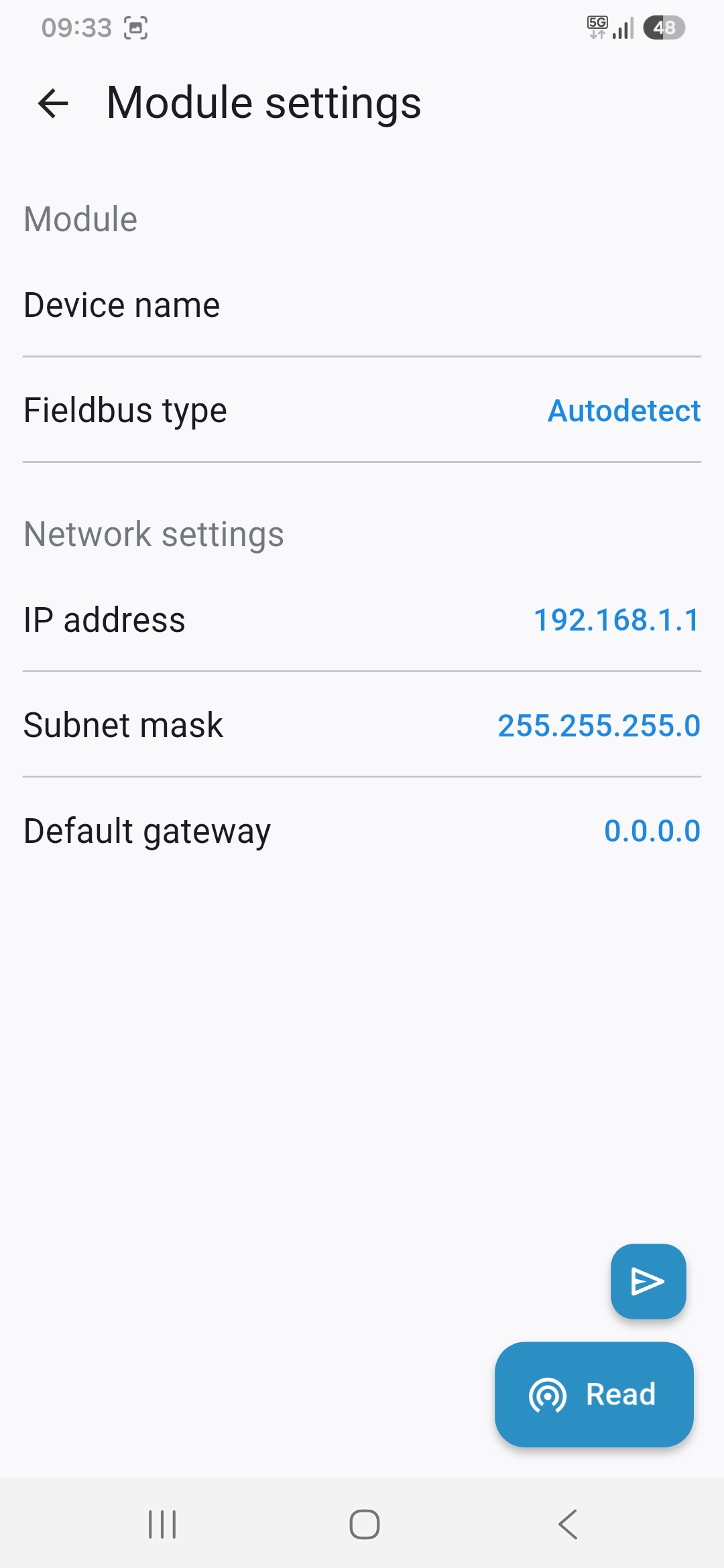
The Module settings tab displays the current network and fieldbus parameters configured on the device. You can view or change these settings here.
Additional options
The device information window provides access to the following options:
NFC: Indicates whether the device’s configuration is enabled via NFC.
PLC Connection: Is a PLC in operation alongside the device?
Caution
Do not change parameters while the device is in operation. This may disrupt system communication and cause equipment damage or personal injury.
Product manual: Access the application manual here.
Factory reset: Perform a factory reset.
Caution
Factory reset erases all device settings. Use this operation only when necessary and ensure the device is not in operation. Resetting an active device may cause unexpected behavior or system failure.
Write parameters to the device
Before you start: The device has been successfully scanned and its parameters have been read.
Select Module settings to open the parameters.
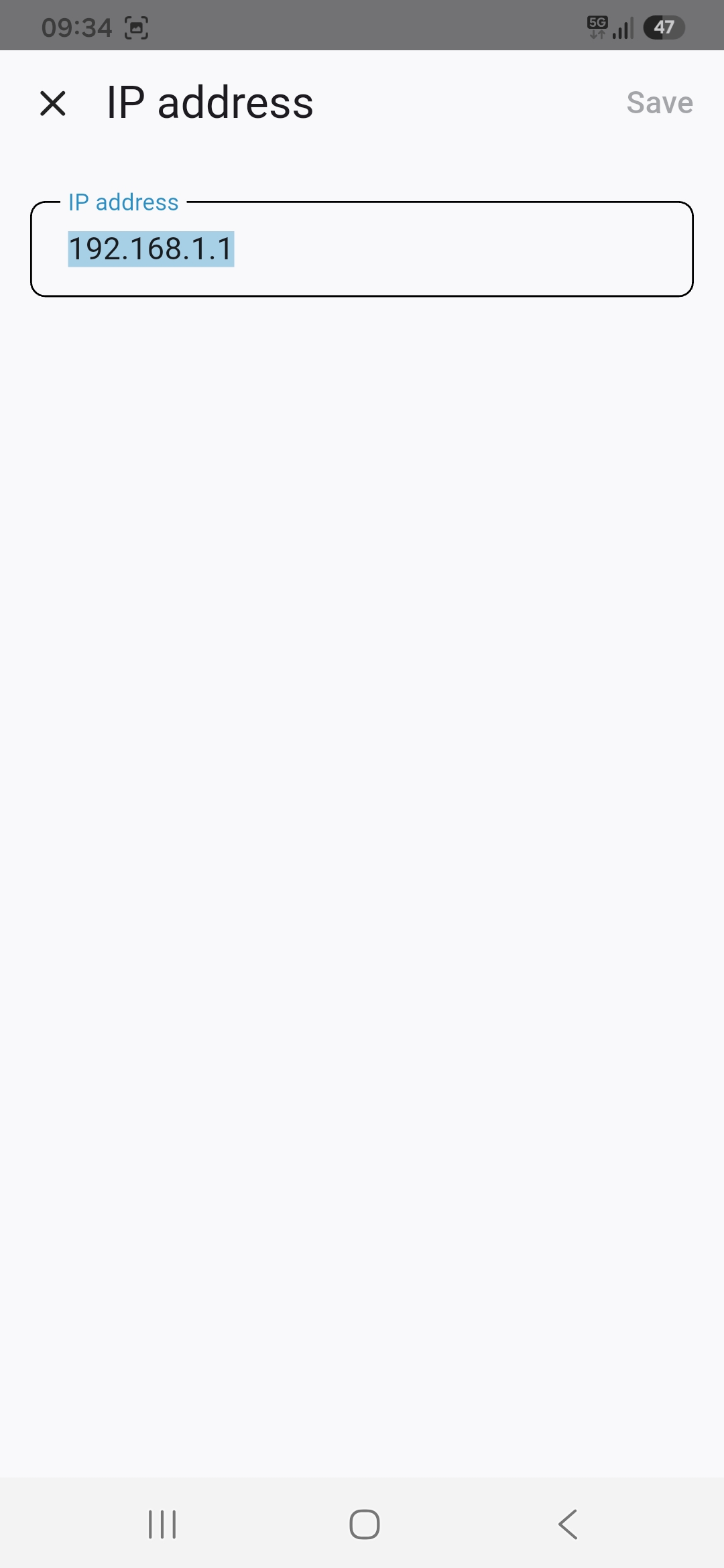
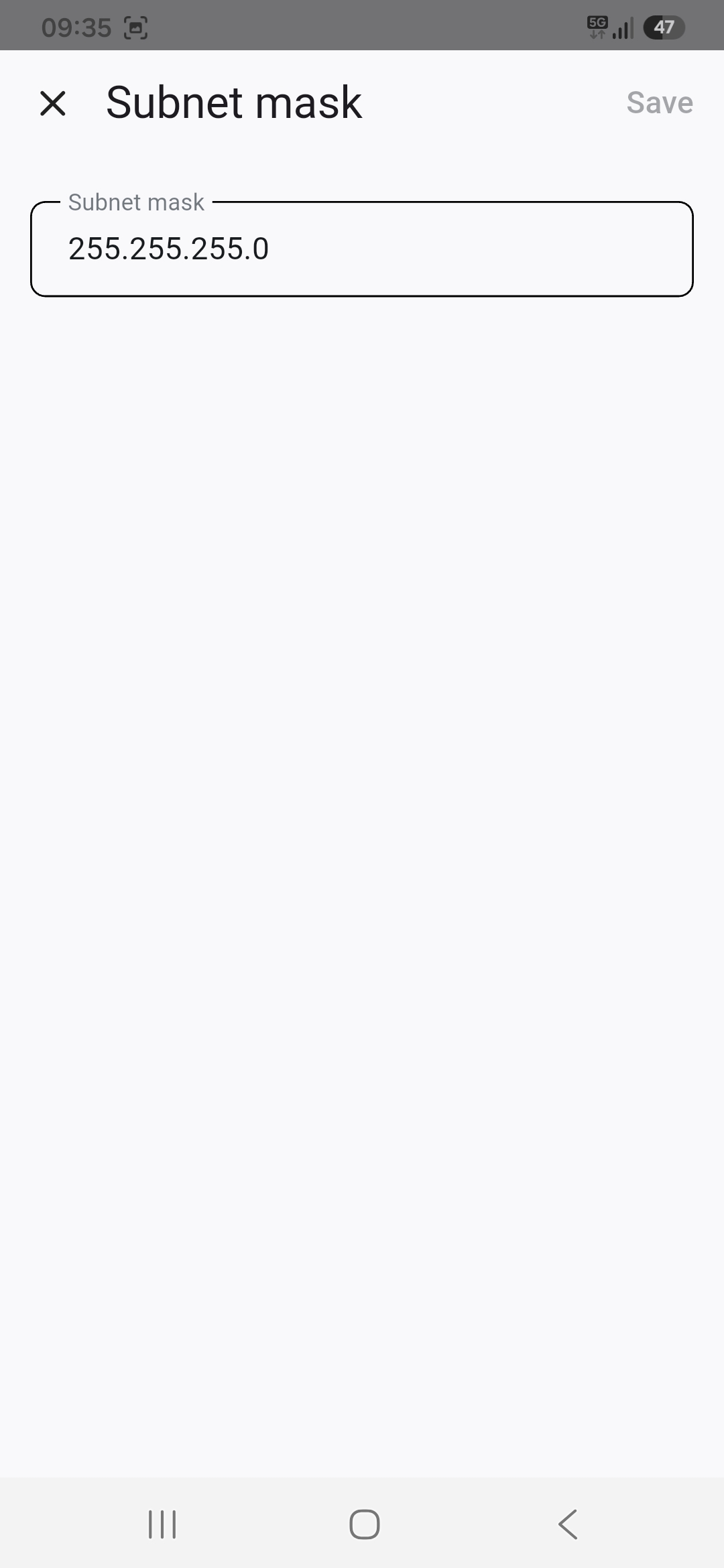
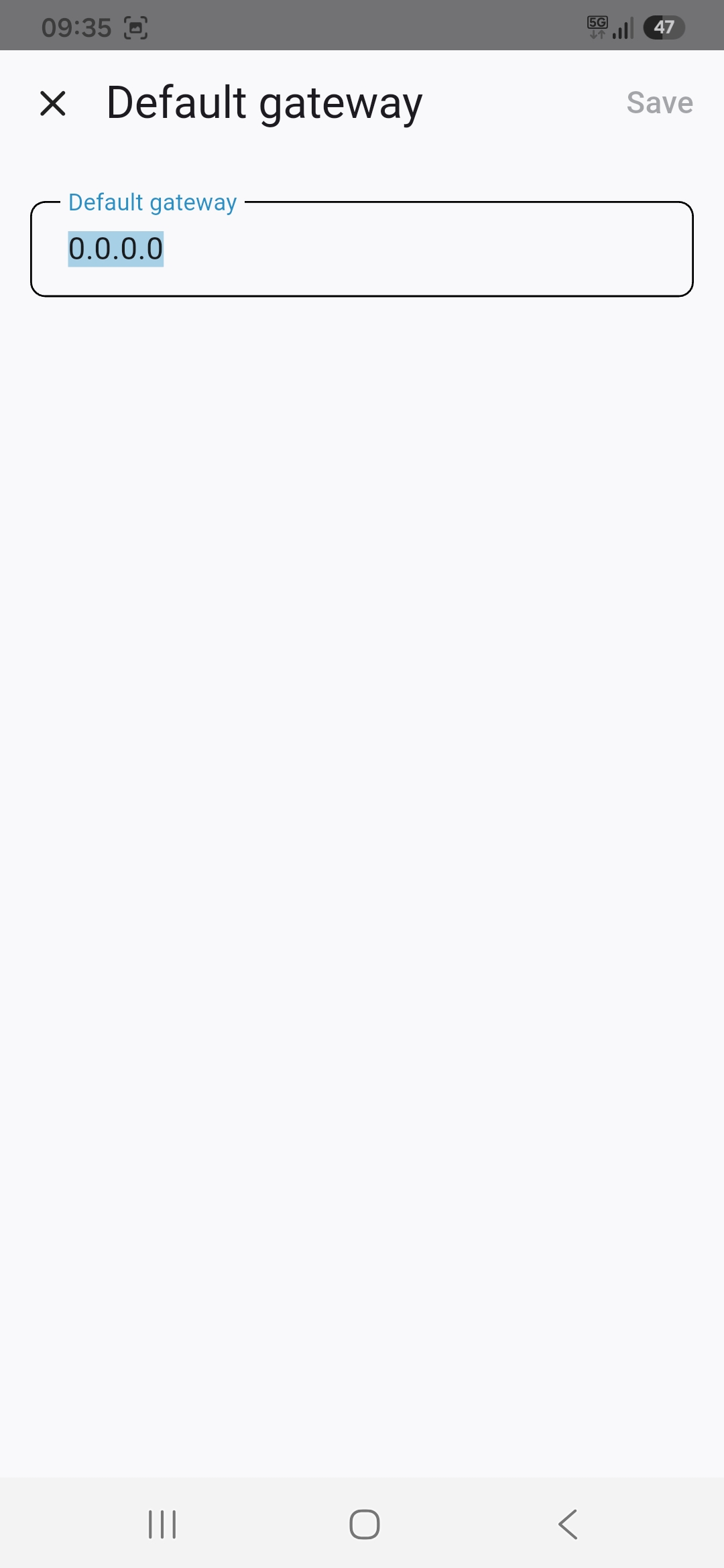
Select a category to edit its value. Each category opens a dialog where you can change the setting.
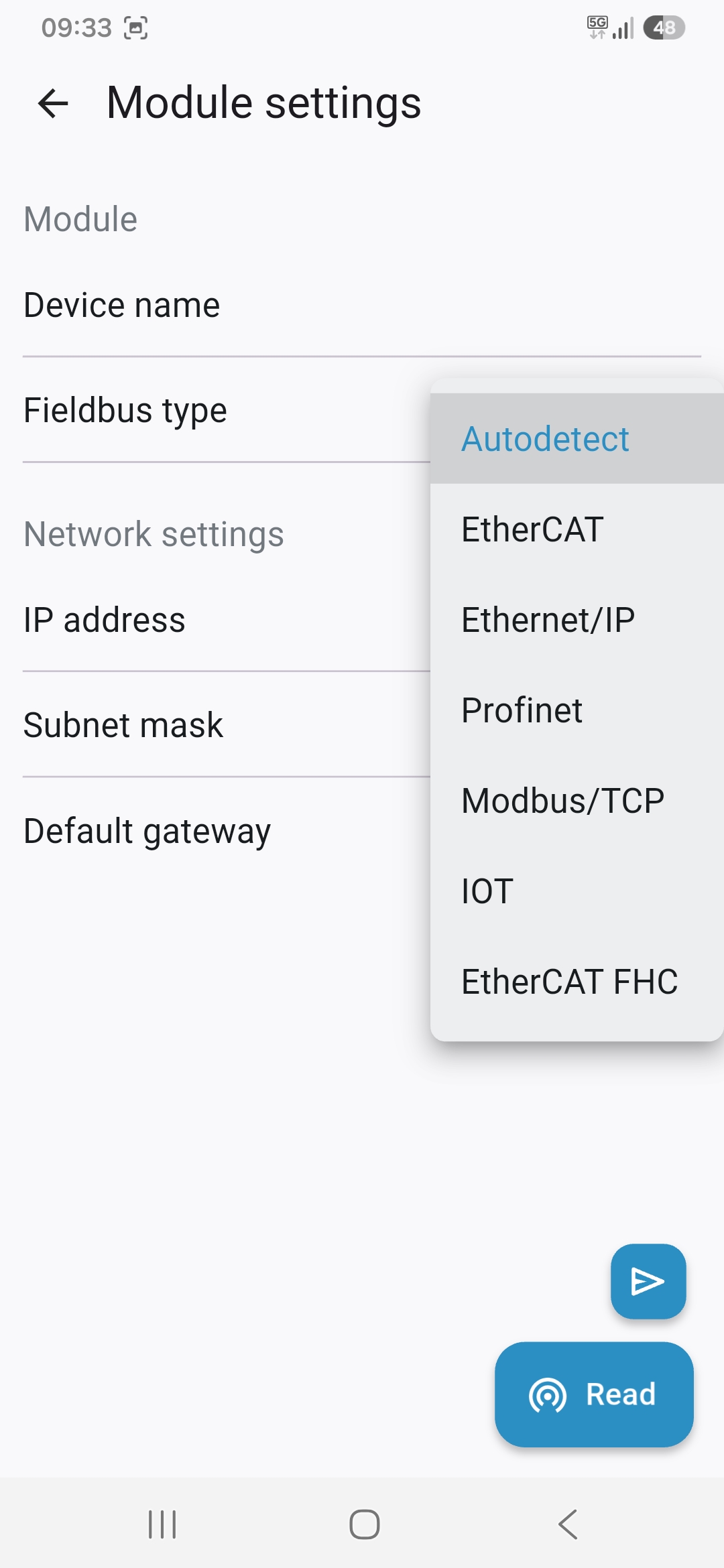
Fieldbus Type
IP Address
Subnet Mask
Default Gateway
Hold your mobile device near the NFC device.
Select the (yellow) Write button.
Wait until the writing process is completed.
For a detailed walkthrough, see the video tutorial.
Copy device parameters
Open your NFC Toolbox Application on your mobile device.
You should see the home screen with basic feature descriptions.
Hold your mobile device near the broken NFC device (e.g. BNI upper right corner).
Press the (blue) Read button to connect with the hardware device.
If successful, you will see the product page with options: Module Information, Module settings, Manual, and Factory reset.
Hold your mobile device near the new NFC device (e.g. BNI upper right corner).
Press the blue Write button.
Wait until the writing process is completed.
For a detailed walkthrough, see the video tutorial.
Factory reset
Open your NFC Toolbox Application on your mobile device.
You should see the home screen with basic feature descriptions.
Hold your mobile device near the NFC device (e.g. BNI upper right corner).
Press the (blue) Read button to connect with the hardware device.
If successful, you will see the product page with options: Module Information, Module settings, Manual, and Factory reset.
Click Factory reset while holding the mobile device near the NFC device.
You will see the following warning:
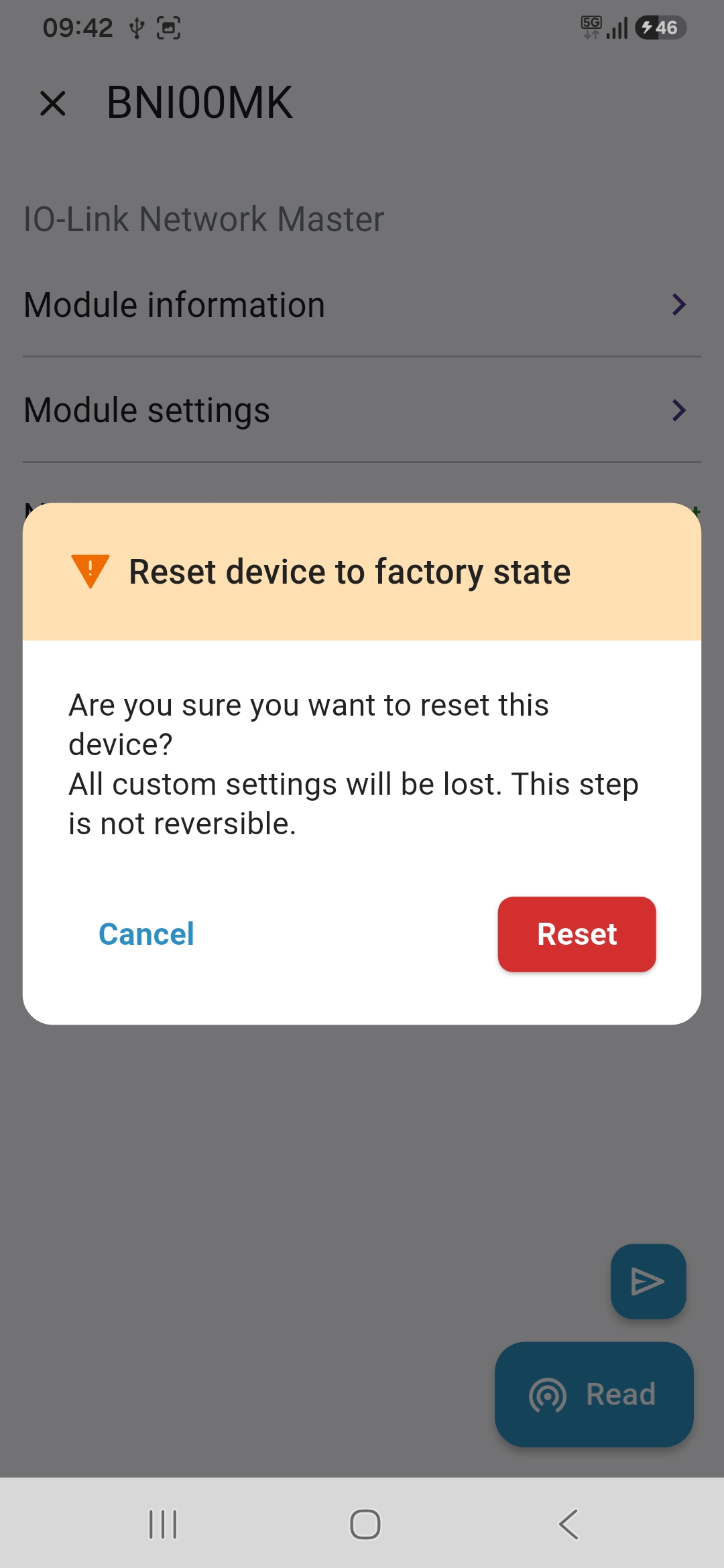
Confirm the warning by pressing the red Reset button.
Note
The Reset button will be unlocked after 5 seconds.
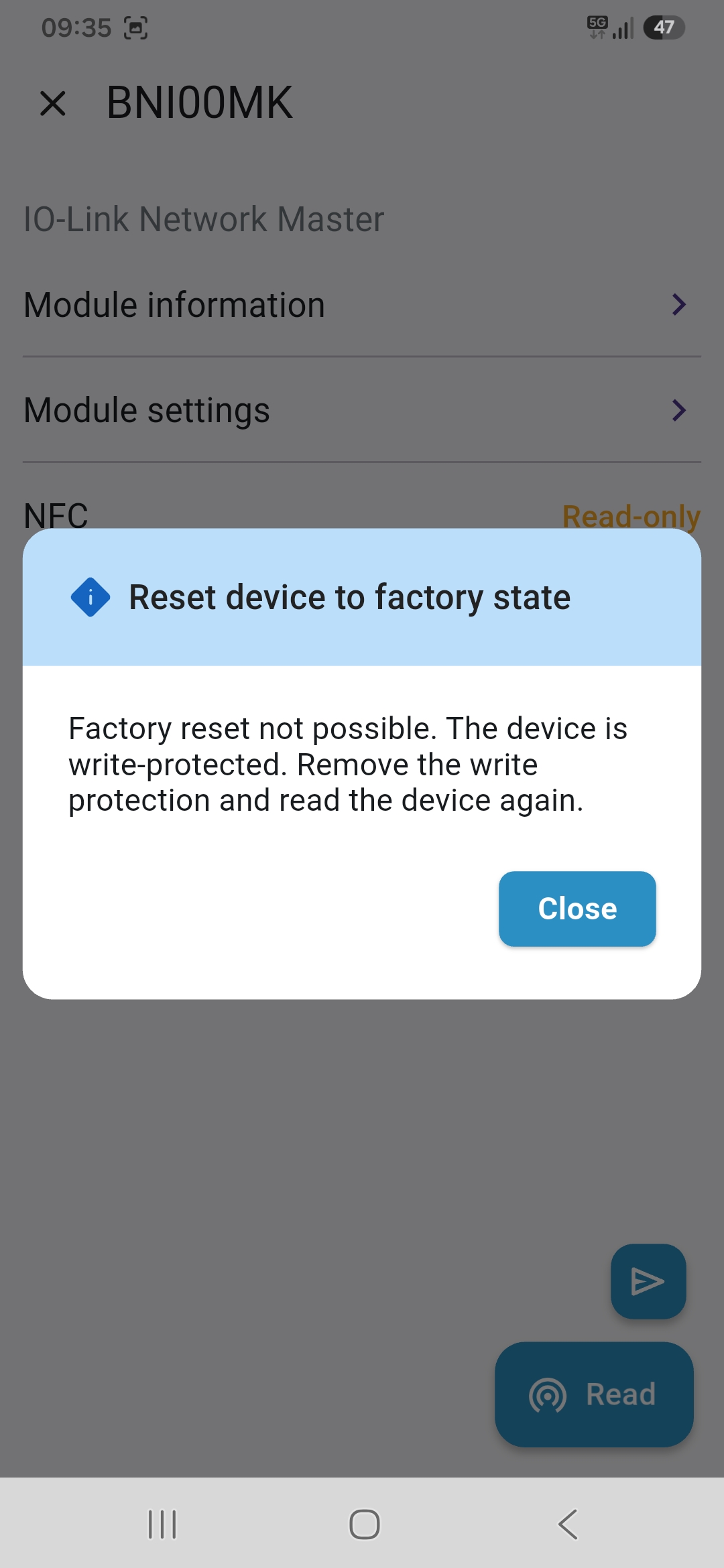
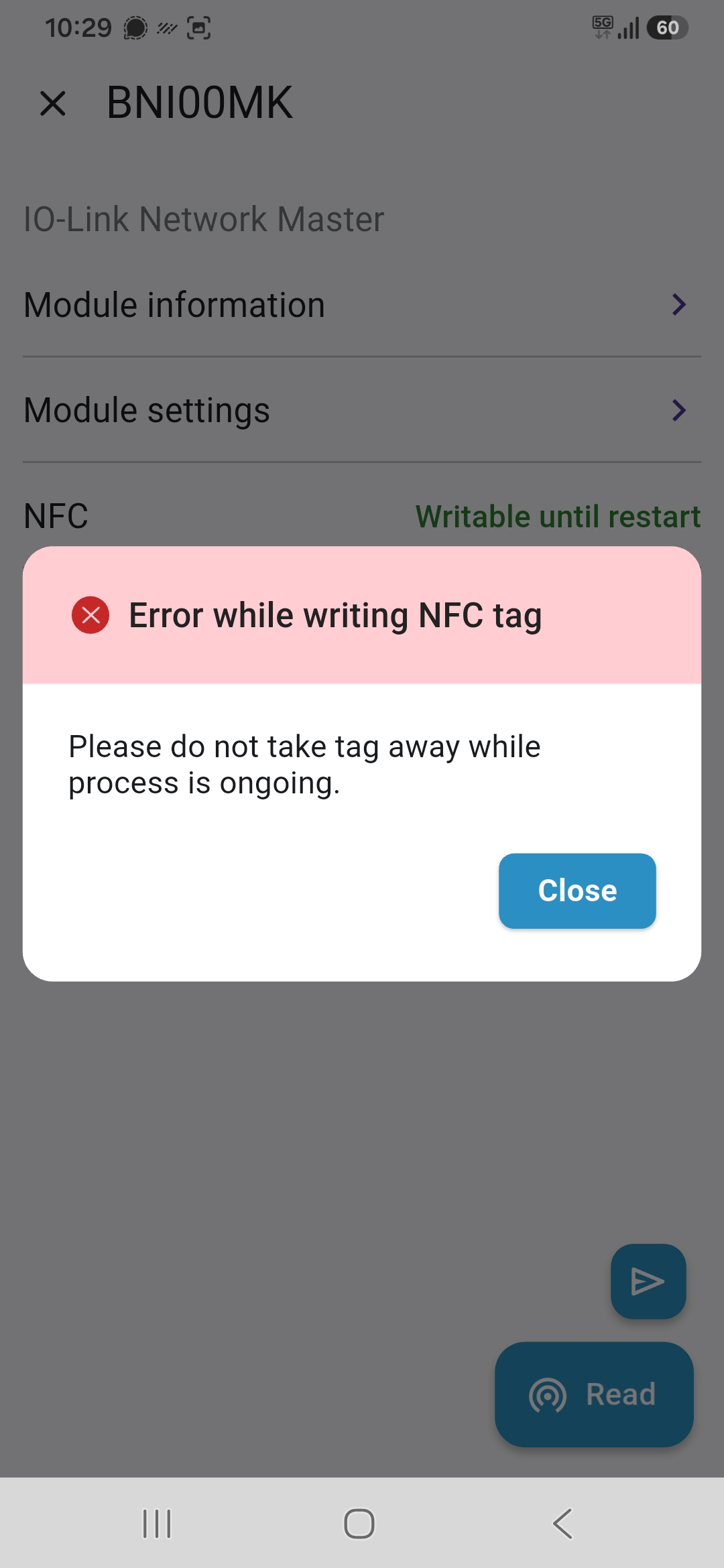
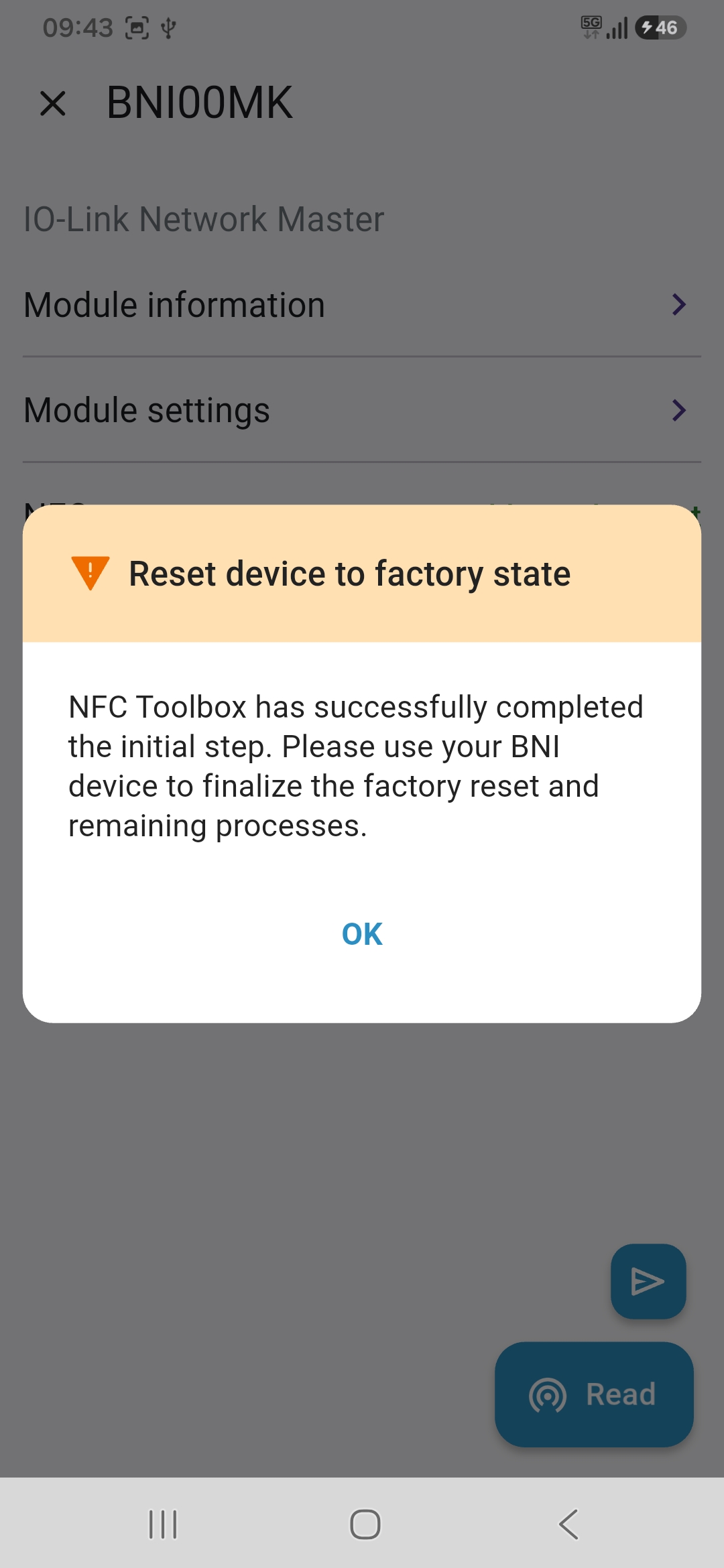
The application starts the reset process. The following results may occur:
For a detailed walkthrough, see the video tutorial.