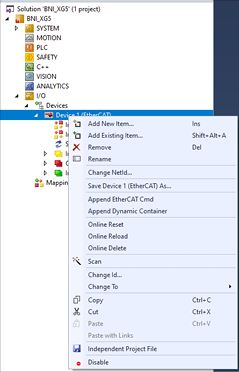
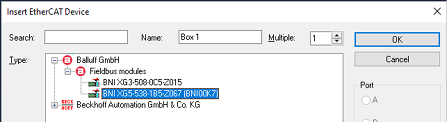
Set up initial EtherCAT device connection
As an example, the connection of the BNI to a Beckhoff TwinCAT control is shown with the TwinCAT System Manager. The exact procedure depends on the project planning software used.
Installing ESI files
The device description has the following name: Balluff BNI XG5-538-1B5-Z067 ECS V.x.x.x.xml
Copy the file to the corresponding TwinCAT directory (in the standard:
C:\TwinCAT\3.1\Config\Io\EtherCAT).⇒ Installed devices are available when the TwinCAT System Manager starts again.
Adding the Network Module as EtherCAT Device
You can either choose to automatically scan the EtherCAT network for devices or manually add a device. Both methods are described below.
Automatic scanning
Prerequisite
Before connecting devices to the EtherCAT network, the EtherCAT system must be in a secure, de-energized state.
Switch on the operating voltage and start the TwinCAT System Manager in Config mode.
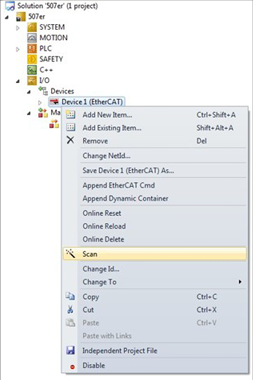
Select Scan in the context menu of the EtherCAT master.
Manually adding a device
Prerequisite
Before connecting devices to the EtherCAT network, the EtherCAT system must be in a secure, de-energized state.